
Miracle Leaf® patient resources
Miracle Leaf® Patient Portal Guide
For patients of Miracle Leaf® clinics that use this patient portal. Screens are from a Florida clinic. If yours looks different, call your clinic.
Welcome
This guide walks you through the Miracle Leaf patient portal. You create your account, book a visit, fill out your intake form, see the doctor, and find your documents afterward.
This portal is for your Miracle Leaf® visit. It is separate from Florida’s Medical Marijuana Use Registry.
Before you start, have ready
- An email address you check. We use it for your account and to send you updates.
- Your mobile phone number.
- Your Florida state ID or driver’s license. You can upload a photo of it during the intake form.
- A few minutes to answer the health questions on the intake form.
When and how you pay varies by clinic. Call your clinic to ask.
Stuck at any step? Call your Miracle Leaf clinic and we’ll walk you through it.
1. Create your account
Open the patient portal link from your Miracle Leaf clinic. You see two choices: Get started, or Sign In if you already have an account.

Sign up and book your first visit
Use this to book your first visit and create your account at the same time.
Steps
-
Click Get started.
-
Choose your state (Florida).
-
Check that the time zone says EST, then click Continue.
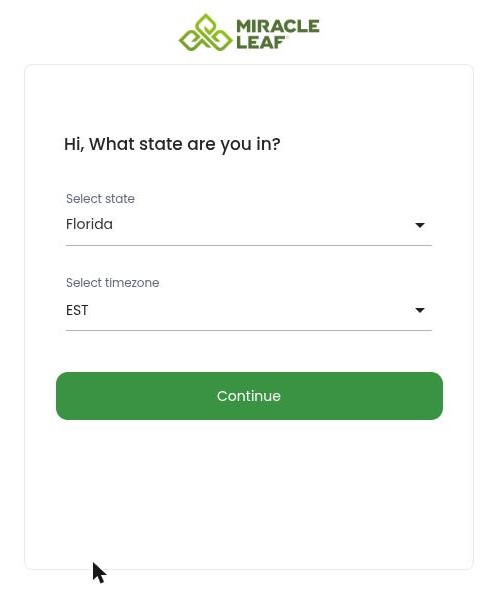
Choose your state and time zone. -
Choose your service. New patients see In-person First-Time Certification.
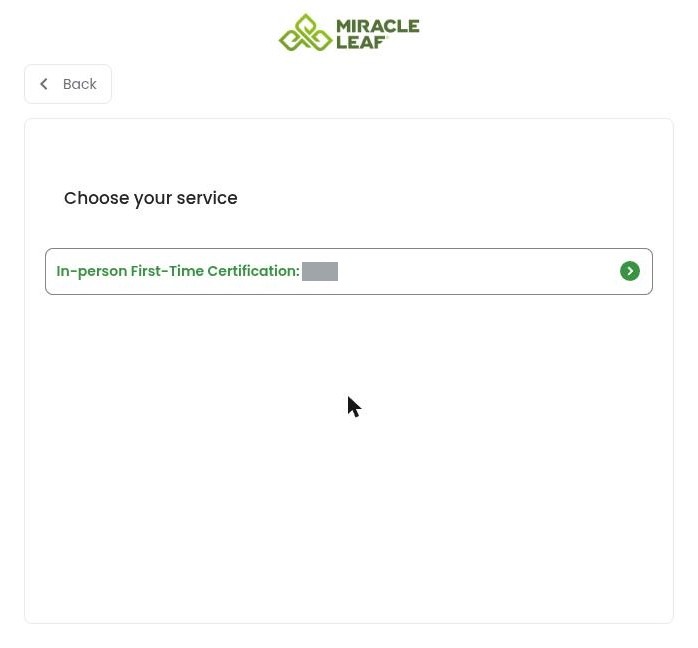
Choose your service. -
Pick a green date on the calendar, then pick a time.
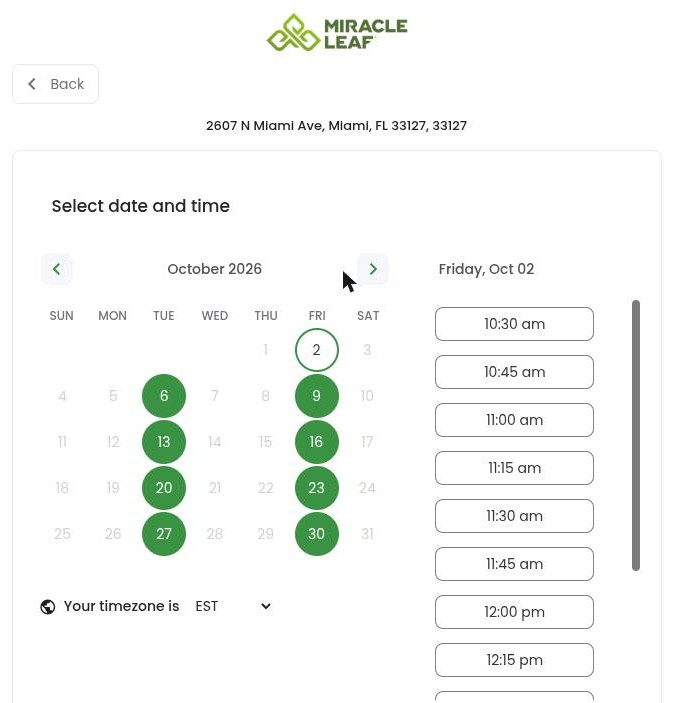
Pick a green date, then a time. -
Check the summary: service, date, time and clinic address.
-
Click Continue.
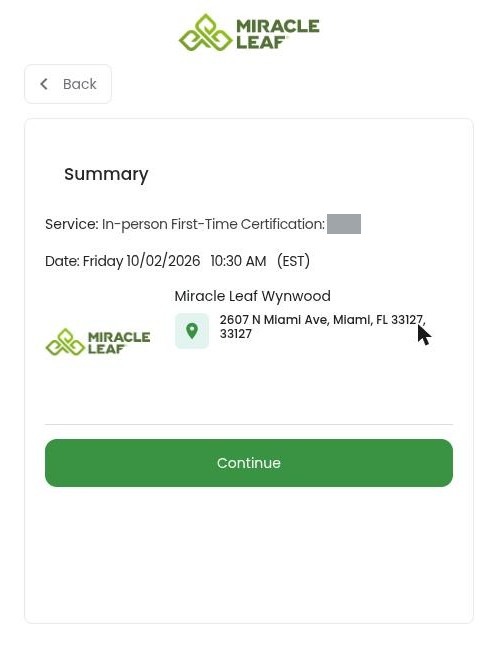
The summary. -
Enter your email address.
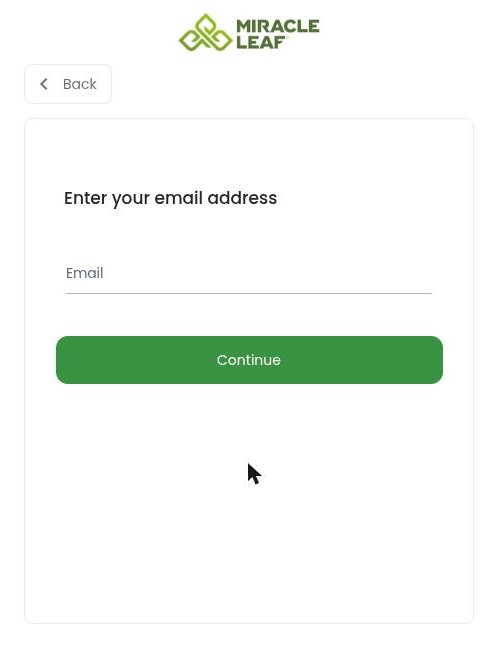
Enter your email address. -
Follow the steps on screen to finish your account.
Create an account from the Sign In page
Use this to create your account now and book a visit later.
Steps
-
On the Sign In page, click Create an Account.
-
Fill in your first and last name, email address, phone number, state and date of birth.
-
Check the time zone. If you are in Florida, change it from CST to EST. The time zone starts on CST.
-
Check the box to accept the Terms of Use and Privacy Policy.
-
Check I am filling this out for a minor only if the account is for someone under 18. Use this box only when you fill out the account for someone else.
-
Click CONTINUE.
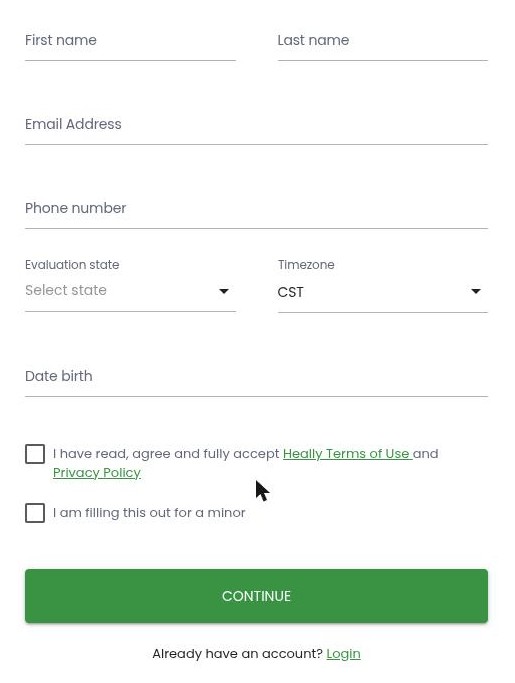
The Create your Account page.
Result: Your account is created and your portal Home page opens right away. The intake form is your first required step.
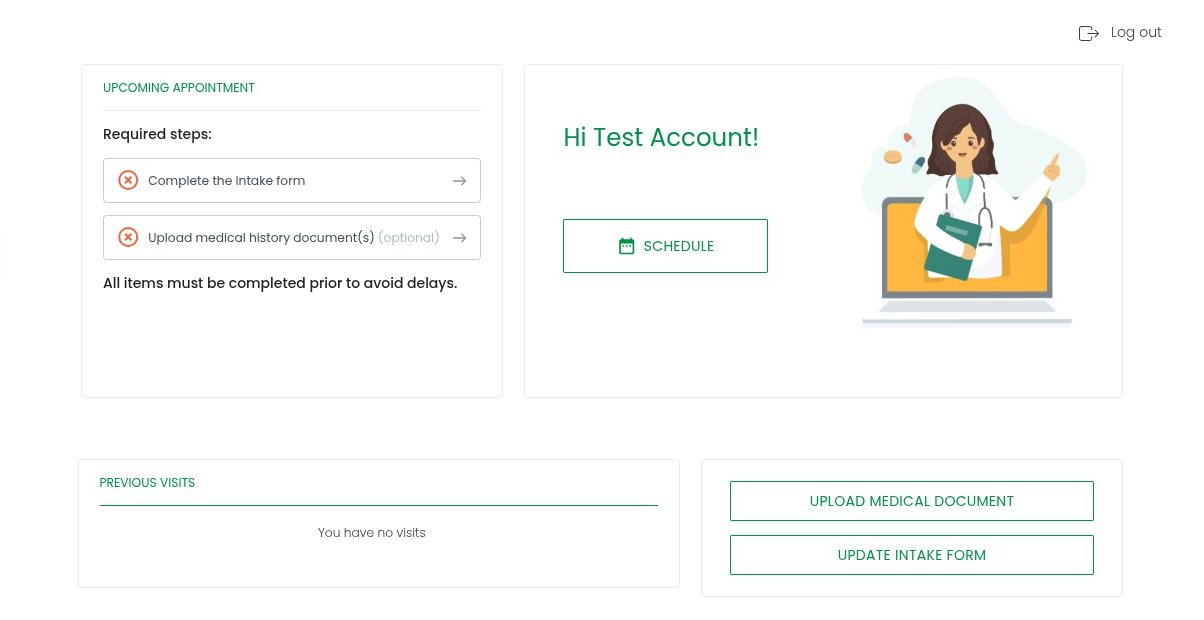
Set your password
Your account does not have a password yet. We email you one link to create it, at the same time as a welcome email.
Steps
-
Find the email called “Setting your Password”. If it is not in your inbox, check your Spam or Junk folder.
-
In that email, click Click Here.
-
Type a new password.
-
Type it again to confirm.
-
Click Save password.
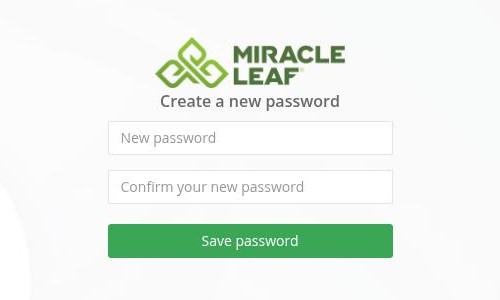
Create a new password.
Result: Your portal opens. Next time, sign in with your email and this password.
Our emails come from “Miracle Leaf® Wynwood”. Mark them as not spam so you don’t miss appointment reminders.
2. Sign in
Sign in to the portal
Use this each time you want to use the portal.
Before you start
- You have a password. If not, use the “Setting your Password” email first (see Set your password), or see Reset your password.
Steps
-
Open the patient portal link.
-
Click Sign In.
-
Enter your email and password.
-
Click Sign In.
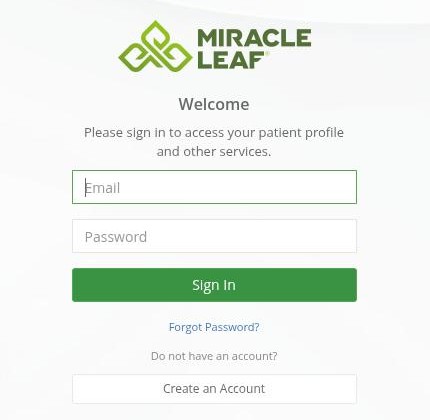
The Sign In page.
Reset your password
Use this if you forgot your password.
Steps
-
On the Sign In page, click Forgot Password?
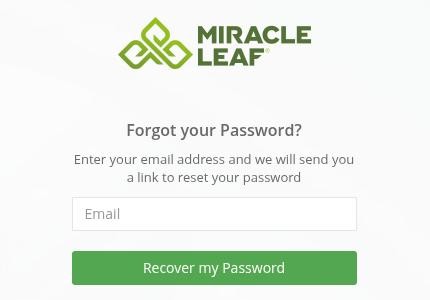
The Forgot your Password page. -
Enter your email address.
-
Click Recover my Password.
Result: We email you a link to set a new password. No email after a few minutes? Check spam, or call your clinic.
3. Book an appointment
Book an appointment from the portal
Use this when you already have an account and want to book a visit.
Steps
-
On Home, click SCHEDULE.
-
Open a category and choose your visit. Renewals are under Telehealth Visit for Recertification.
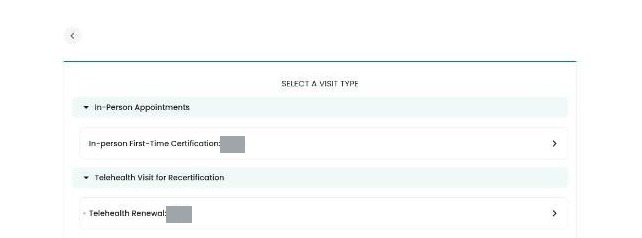
Choose your visit type. -
Pick a green date on the calendar, then pick a time. The time turns into a CONFIRM button.
-
Click CONFIRM.
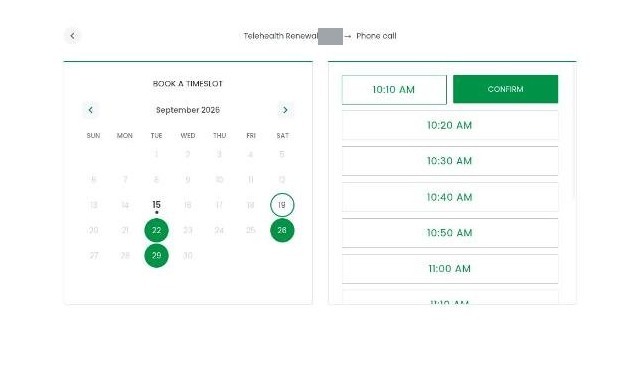
Pick a date, then a time, then CONFIRM.
Result: Your Home page shows the appointment and a reminder to complete your intake form.
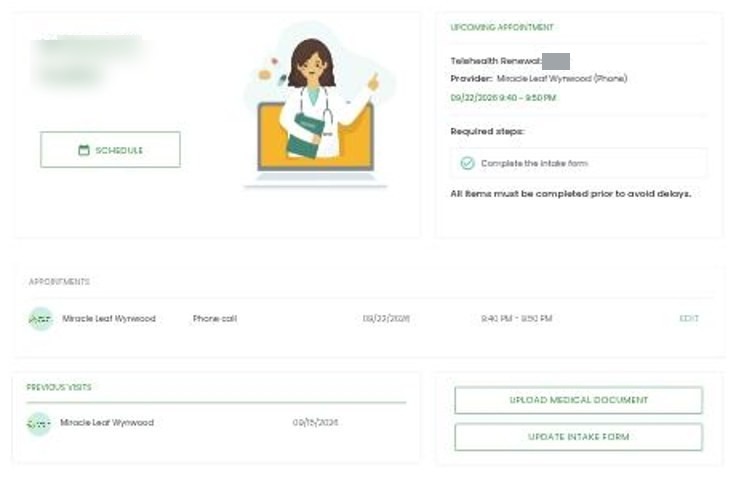
Check the phone number on your booking confirmation email. It is the number we have on file for you.
4. Your intake form
Fill out your intake form
Finish your intake form before your visit to avoid delays.
Before you start
- Have your Florida state ID or driver’s license ready.
Steps
-
On Home, click Update Intake Form.
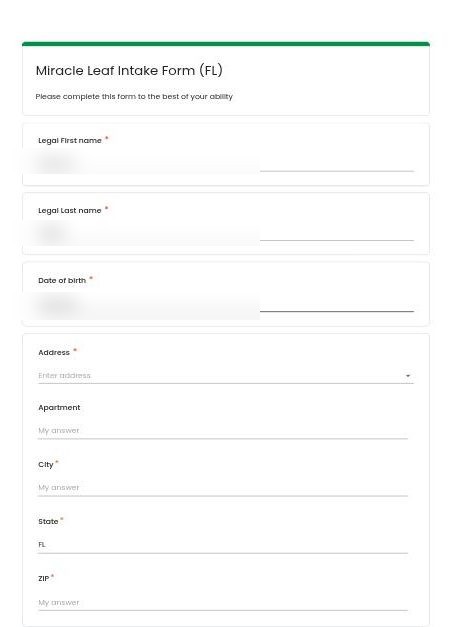
The top of the intake form. -
Enter your name and date of birth.
-
Start typing your address, then pick it from the list. City, state and ZIP fill in for you.
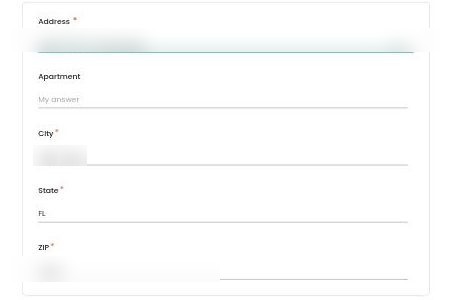
City, state and ZIP fill in from your address. -
Enter your contact details.
-
Answer your health questions.
TipIf the height box says it is required even though you filled it in, clear it and type it again.
-
Choose your qualifying condition.
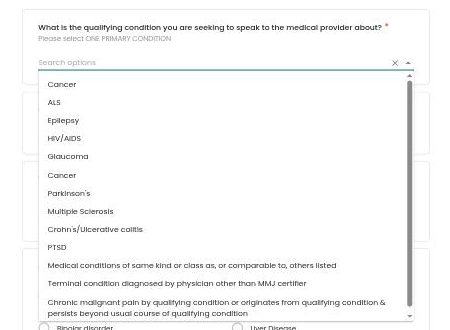
Choose your qualifying condition. -
Answer the follow-up questions that appear.
-
Upload your state ID or driver’s license.
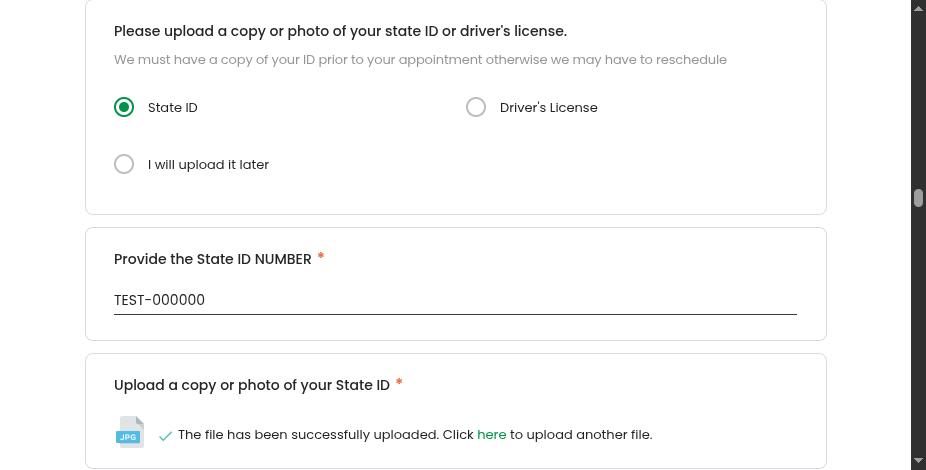
Upload a photo of your ID. ImportantYou can pick I will upload it later. But we must have a copy of your ID before your appointment, or we may have to reschedule.
-
If you have a medical record for your condition, upload it. If you don’t, answer the questions that appear.
-
Click NEXT.
-
Review your answers and the Florida medical marijuana consent form.
-
Sign the form, then click SIGN FORM.
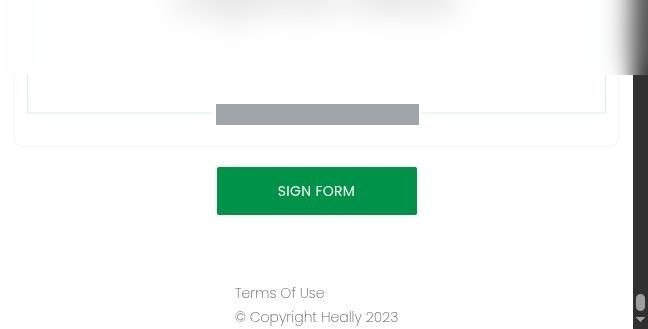
Sign, then click SIGN FORM.
Your answers save as you go, so you can come back and finish later.
5. Your visit
Join a video visit
Use this when your appointment is a video visit.
Steps
-
A few minutes before your appointment, sign in. Your appointment shows a JOIN APPOINTMENT button on Home.
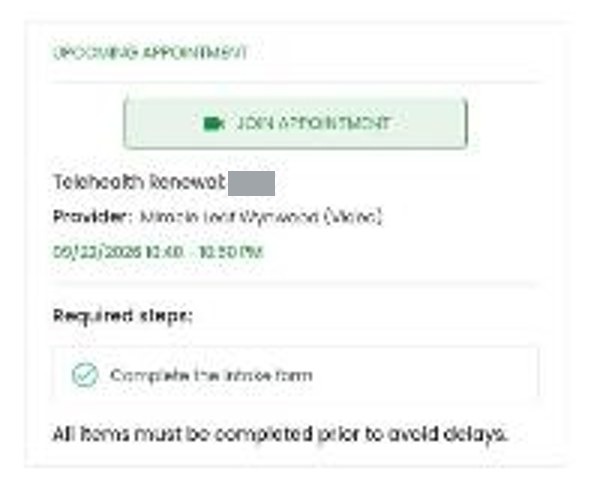
The JOIN APPOINTMENT button. -
Click JOIN APPOINTMENT. You see your camera preview and “Ready to join?”
-
If your browser asks, allow the camera and microphone.
-
Click JOIN NOW.
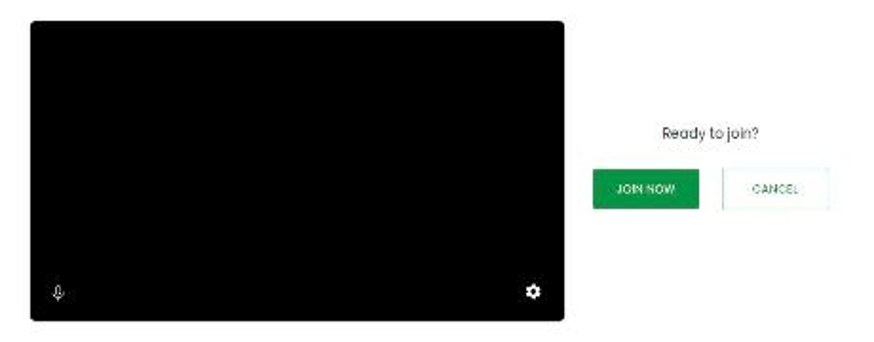
Check your camera, then JOIN NOW. -
Keep the page open while the doctor gets ready.
-
When you see “Incoming call”, click ACCEPT.
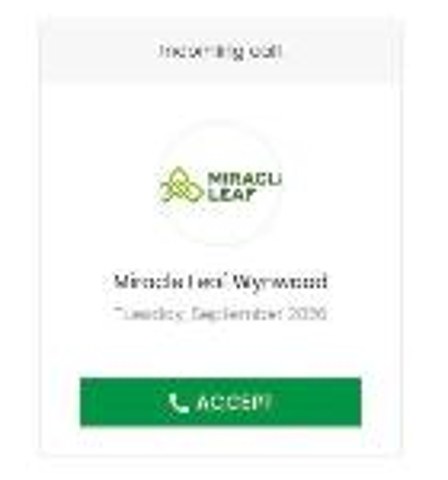
Incoming call.
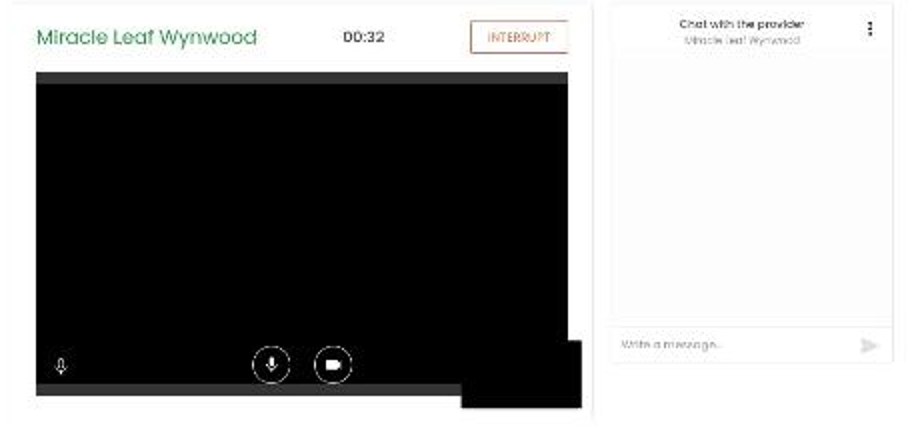
Result: You are connected. There is a chat box on the side if you need to type a message.
Get ready for a phone visit
Use this when your appointment is a phone visit.
Steps
- Check the phone number on your booking confirmation email. It is the number we have on file for you.
- If the number is wrong, call your clinic before your visit.
- Keep your phone nearby at your appointment time.
Come in for an in-person visit
Use this when your appointment is at the clinic.
Steps
- Come to your Miracle Leaf clinic at your appointment time. The clinic address is on your booking summary.
6. After your visit
See your documents
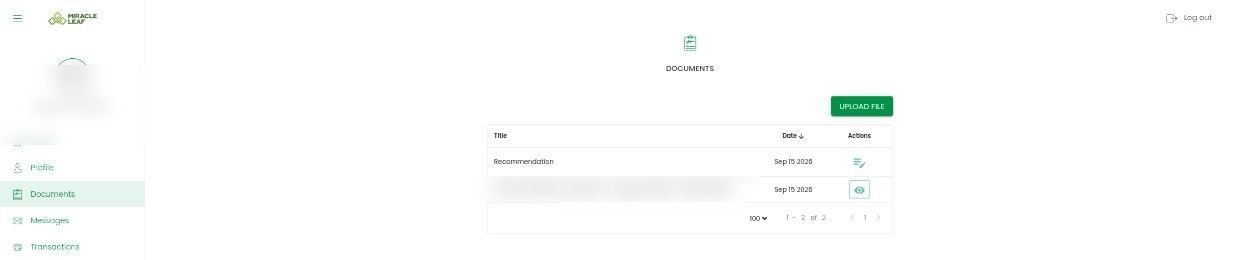
Use this to see your recommendation and signed consent form after your visit.
Steps
-
Look for the email and text saying your visit is complete.
-
In the portal, open Documents.
Result: You see your recommendation and your signed consent form.
If this was your first certification, your next step is your Florida medical marijuana card application. Our Florida registry guide shows how to sign in and check its status.
Book your renewal
Use this when it is time to renew.
Your recommendation lasts up to 210 days. Book your renewal before it ends. See our Florida card renewal guide.
Steps
- On Home, click SCHEDULE.
- Book a Telehealth Renewal under Telehealth Visit for Recertification. See Book an appointment from the portal for the rest of the steps.
7. Reference
Your portal menus
| Menu | What you’ll find there |
|---|---|
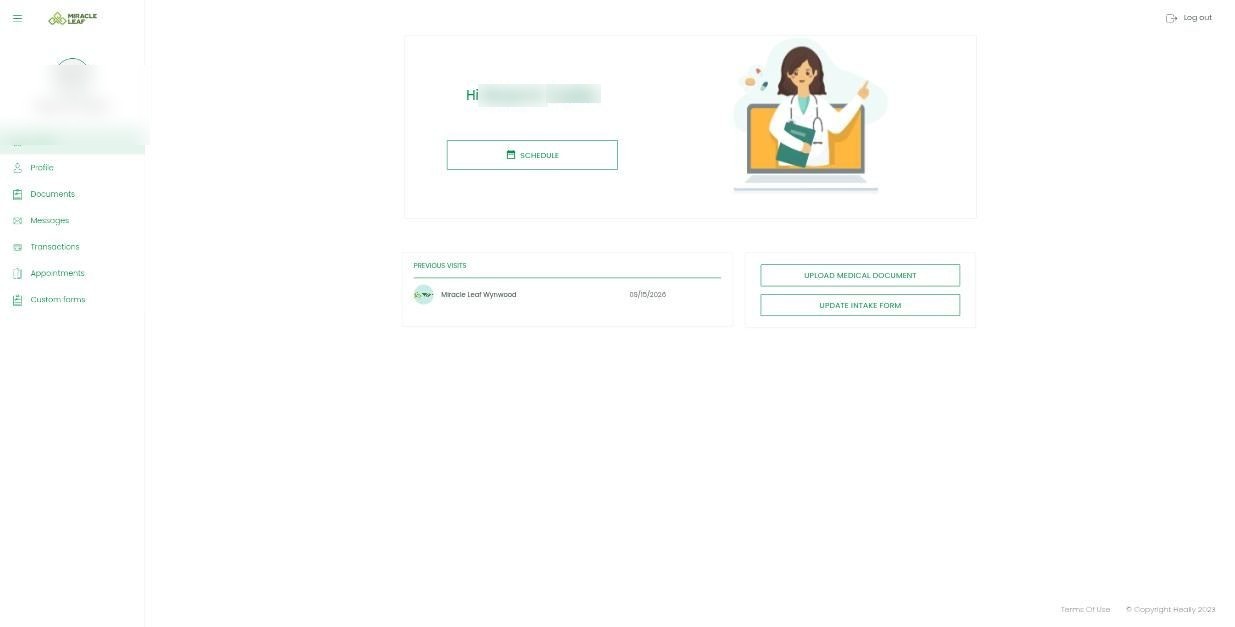
| Home | Your next appointment, the SCHEDULE button, Upload Medical Document and Update Intake Form. |
| Profile | Your details. Name, date of birth and email are locked. Call your clinic to change them. You can update your address, phone numbers and ID number yourself. Change your password on the Password tab. |
| Documents | Your recommendation and signed consent form, once your visit is complete. You can also upload files here. |
| Messages | Please call your clinic instead. |
| Transactions | Your payment history. |
| Appointments | Upcoming, past and all appointments, and a Schedule button. |
Need help?
Call your Miracle Leaf clinic. We’re happy to help with your account, booking, the intake form or joining a video visit.